 FightNode
How to use FightNode
Open a topic below. Instructions cover the latest features; availability depends on app version and connected firmware. English button names help you recognise the controls.
Find the setting you need
Updated 19 October 2026. This guide covers the latest app features, including the language improvements in version 1.0.45. Availability depends on your installed version and the Google Play rollout. Button names below are shown in English; the app uses your selected language.
Before you start
Before you start
You need
An Android phone, the FightNode app, a compatible BagNode or FightNodePad Bluetooth sensor, and a punching bag mounted securely before training.
Check first
Charge or power the BagNode sensor, enable Bluetooth on your phone, and keep the phone close to the bag during setup.
First setup
First setup
Install FightNode
Open the app page, install FightNode on Android, and allow Bluetooth permissions when the phone asks.
Turn on BagNode
Power on the BagNode sensor and make sure it is mounted firmly on the punching bag before connecting.
Scan and connect
Open FightNode, scan for Bluetooth devices, select your BagNode sensor, and wait until the app shows it is connected.
Start a round
Choose your training mode, start the timer, and begin punching after the start signal.
Main app screen
Main app screen
CONNECT
Scans for a compatible BagNode or FightNodePad Bluetooth sensor and connects the app to live punch data. Use DISCONNECT before switching sensors.
START and STOP
START begins the selected round or quest. STOP ends the active session and saves the result when session data is available.
TARE
Zeroes the BagNode sensor before training. Use it while the bag is still, before the first punch.
RESET
Clears the current live counters on the app screen so you can begin fresh.
Choose your language
Choose your language
In the app
Open Settings → Choose language, select your language, then tap Save settings. The selected language is used across app menus, Camera Setup, groups, ranking, consent and help.
Available languages
English, ไทย (Thai), 中文 (Chinese), 한국어 (Korean), 日本語 (Japanese), Español, Français, Deutsch, Italiano and العربية (Arabic). Arabic uses a right-to-left layout.
On this website
Use 🌐 Choose language in the website navigation. The home, getting-started and guide pages have dedicated English, Danish and Thai versions. Other languages use Google automatic translation; detailed reference and policy pages remain in English. This is separate from your saved app language. Names, invite codes, links and some technical error messages are not translated.
Create or join a private group
Create or join a private group
Create a group
Sign in and open Create Group. Enter the group details requested by the app and confirm creation.
Invite or join
Share the invitation link or code with the intended members. To join an existing group, use its invitation link or enter its code in the group flow. Keep private invitation codes within your group.
Compare within the group
Open the group to see its available member results. A private group is separate from the public ranking: joining a group is not consent to publish a video on YouTube.
FightNodePad calibration and TARE
FightNodePad calibration and TARE
Known weight
Use the pad calibration flow with an explicitly entered, known weight. Your fighter profile weight is not automatically the padholder weight. Follow the placement, fresh zero, stabilisation and measurement prompts.
TARE and saved calibration
Use TARE with the sensor unloaded and stable when instructed. TARE resets the current zero; it does not delete a saved physical calibration. If a recalibration fails, the last valid calibration is kept.
FP and physical weight
Physical calibration and FP training scores are different. FP is not kilograms. FightNode does not currently normalise FP between pads using an invented reference value.
Compete with results on the big screen.
FightNode Live graph shows Last hit, Max hit (Max FP), the live graph and the last 20 hits. Share your phone screen with a compatible TV or large display so fighters, coaches and spectators can follow the results during a friendly competition.
Open Live graph and tap Screen sharing. Connect the phone and TV to the same Wi-Fi and use a supported mirroring method: Samsung Smart View or Google Home → your display → Cast my screen. Return to Live graph after connecting. Normal view includes the last 20 hits; scroll to the list when needed. Large display enlarges Last hit, Max hit and the graph, while the hit list remains in Normal view. Both devices must support the chosen mirroring method.
Live graph and device tools
Live graph and device tools
Live graph
Use the live graph to follow sensor samples and registered impacts. It can be used separately from a timed round; saved session graphs remain in History.
BlackBox
On supported connected FightNodePad firmware, BlackBox shows the device’s stored information. This is separate from the phone’s local session history.
Device updates
Use the app’s device update controls when supported by the connected firmware. Keep power and connection stable. Older firmware may need a USB update before app-based updates become available.
See what every FightNode screen does
See what every FightNode screen does
These screenshots illustrate the main screens. Some show earlier app layouts; use the updated instructions below for current settings, ranking consent and language selection.
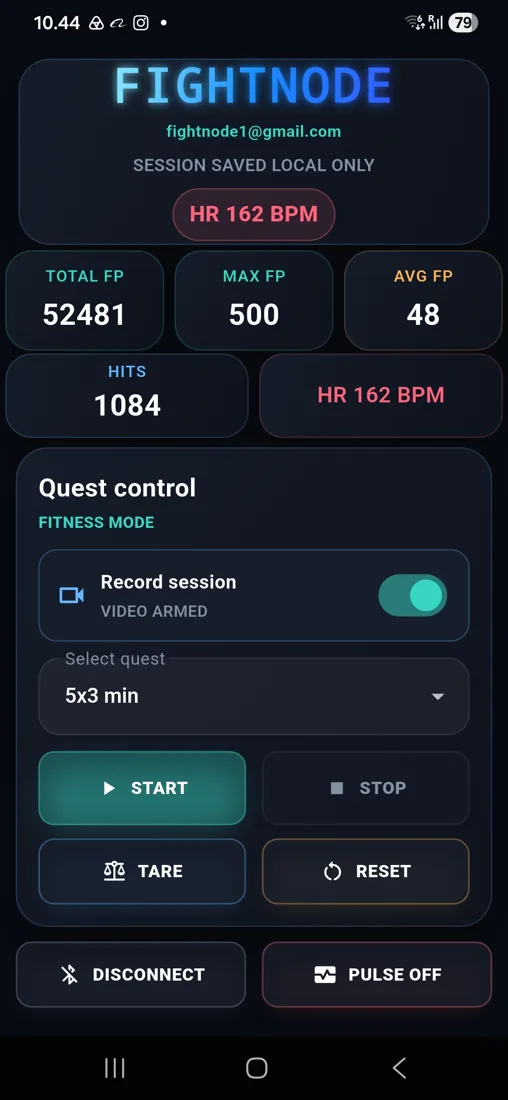
Live training dashboard
The opening screen keeps live performance and workout control together. Total FP, Max FP, Avg FP, Hits, and Heart Rate sit directly above Quest Control, while Connect and Connect Pulse are always easy to reach.
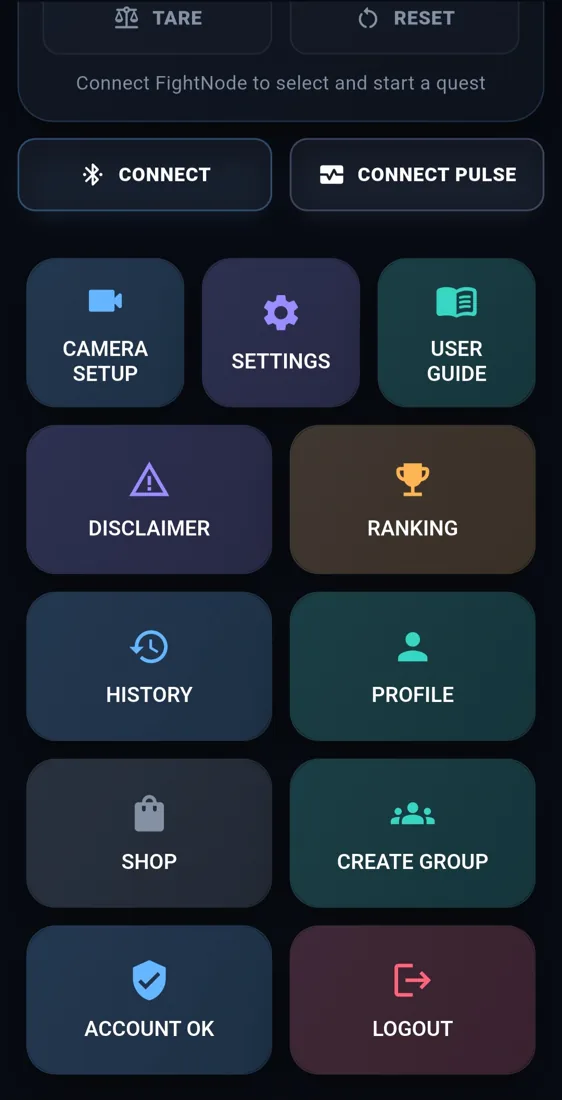
All FightNode tools
Open Camera Setup, Settings, User Guide, Disclaimer, Ranking, History, Profile, Shop, and Create Group from one clear menu. Account status and Logout are available at the bottom.
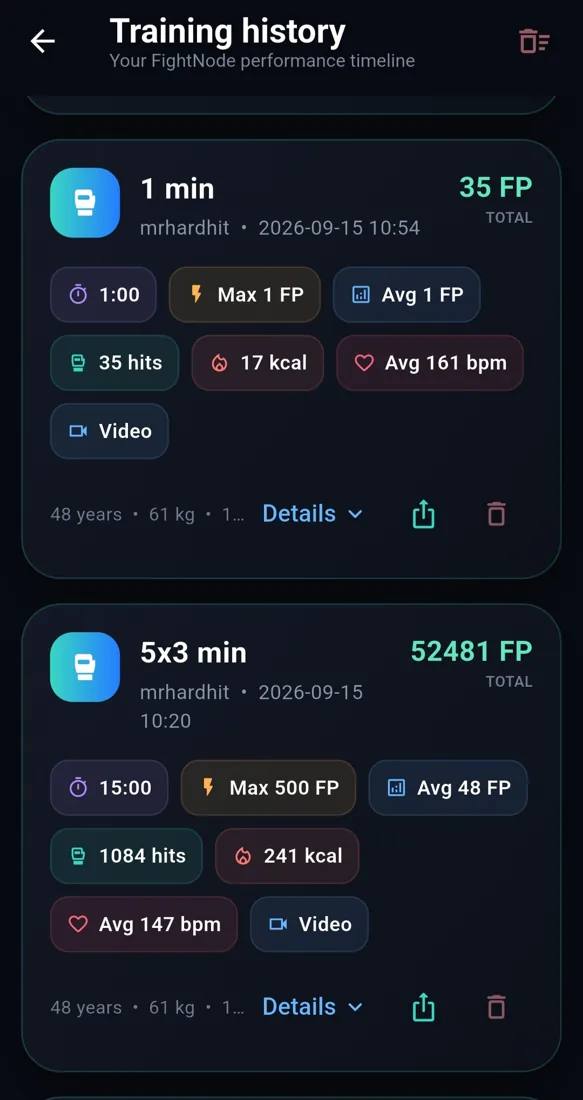
Training history
Review every saved session with total FP, total hits, energy, workout length, maximum and average impact, pulse, video status, and the exact date. Expand Details to inspect the graphs for that workout.
Impact power over time
The impact graph places seconds on the horizontal axis and FP on the vertical axis. It shows how punch force changes through the session alongside time, max hit, average hit, hits, and total FP.
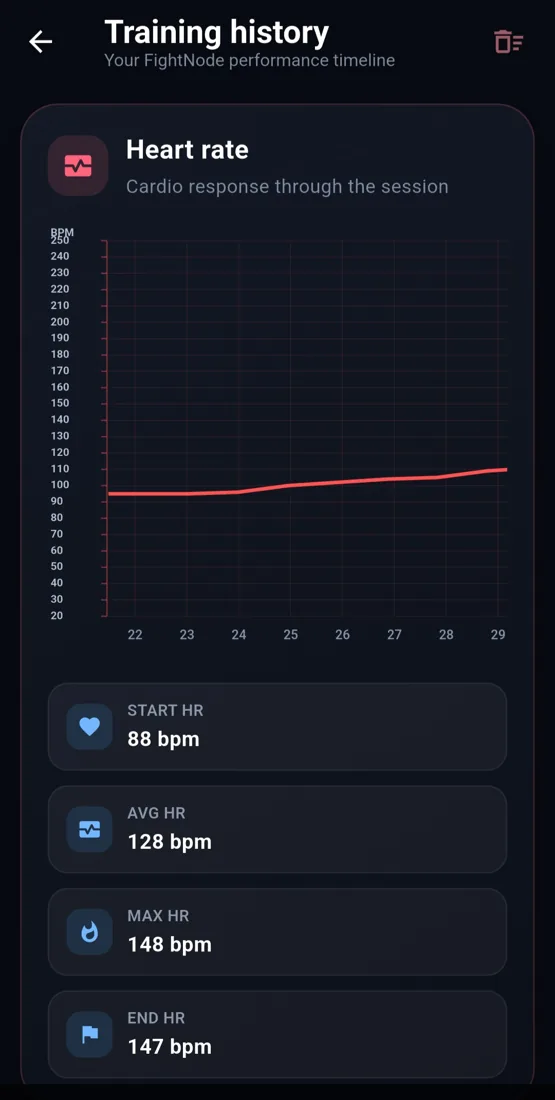
Heart-rate response
The pulse graph tracks BPM through the workout with seconds horizontally and pulse values vertically. Start, average, maximum, and end heart rate make session intensity easy to compare.
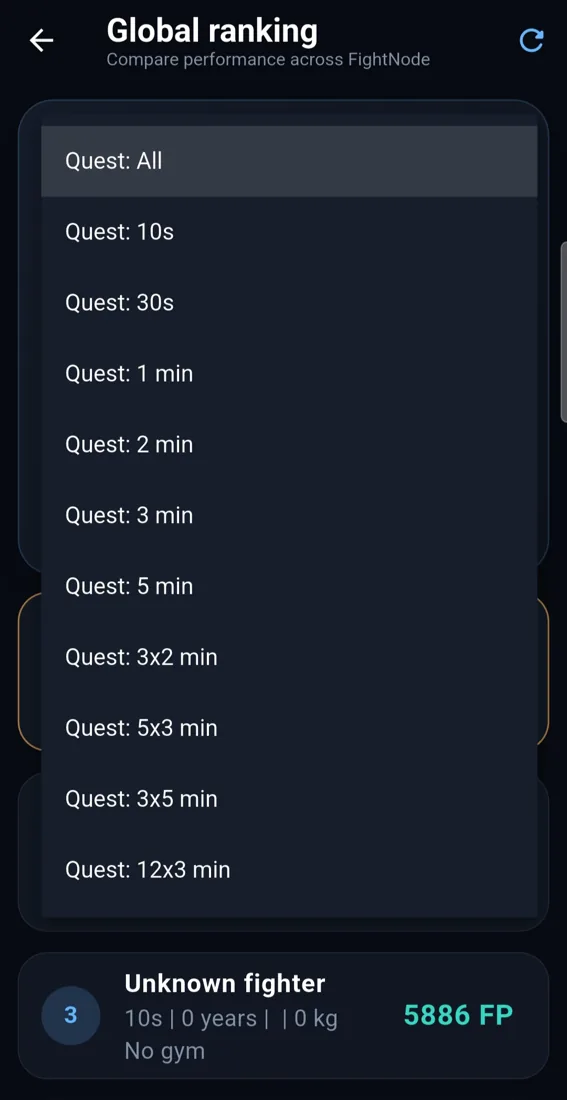
Compare the same quest
Select a quest to compare results from the same workout format, within the currently supported public ranking formats. Longer and multi-round workouts remain available for local training.
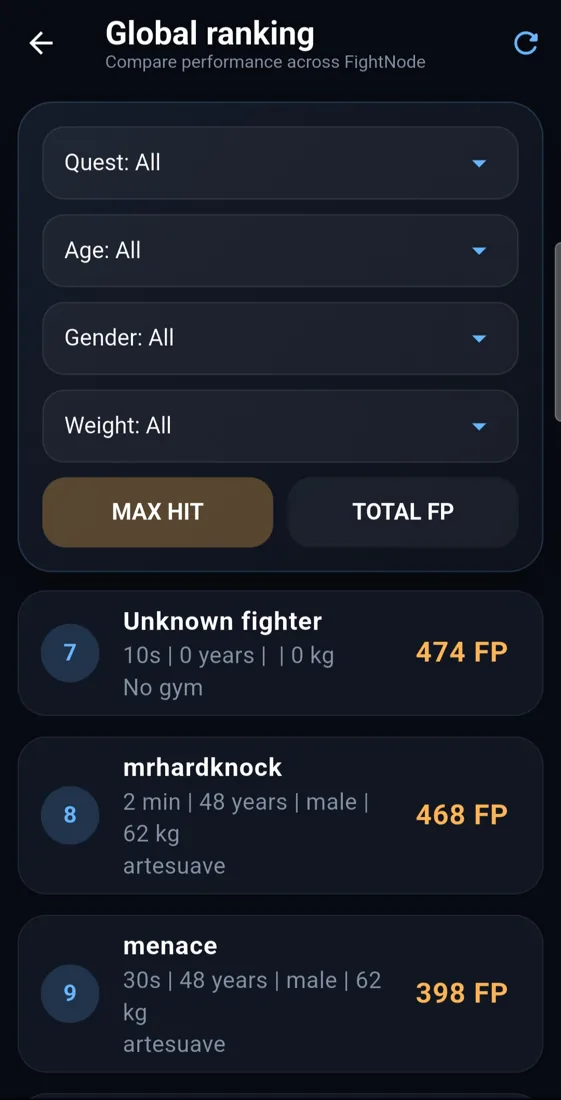
Global Max Hit ranking
Compare the strongest registered punches within the same quest. Then filter by age, gender, and weight for a fair comparison. Select All only to see the complete overview.
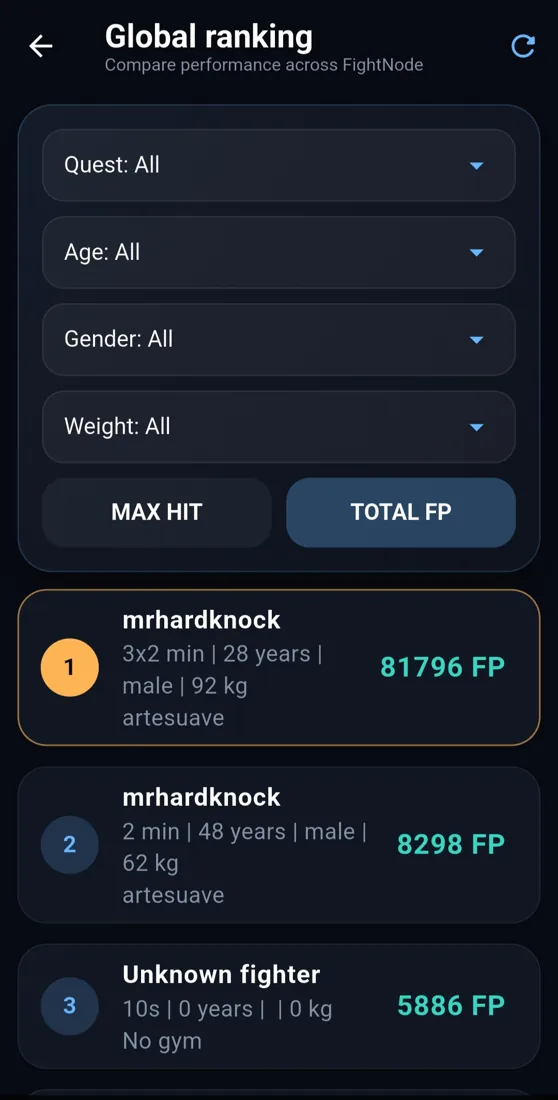
Global Total FP ranking
Switch from Max Hit to Total FP to compare the full amount of work completed in a quest. Quest, age, gender, and weight filters help you compare like with like.
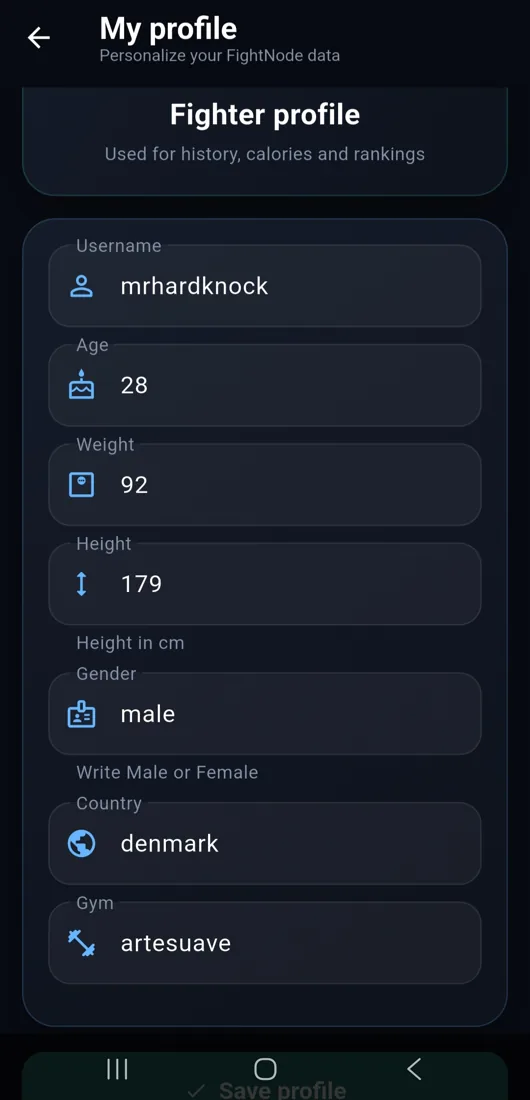
Fighter profile
Save username, age, weight, height, gender, country, and gym. FightNode uses this profile for history, calorie estimates, rankings, and private-group results.
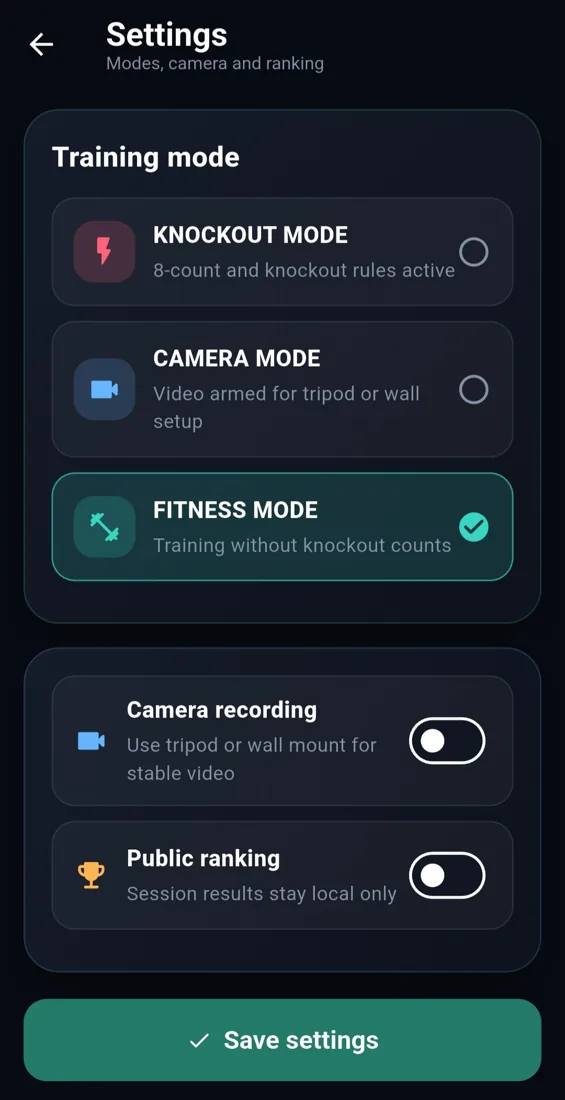
Training settings
Choose a training mode and language in Settings. Public ranking additionally requires Connect ranking, explicit publication consent and a complete eligible video round; a settings switch alone does not submit a video.
Private groups
Create or join a private FightNode group, invite fighters with a secure link or invite code, and compare the group’s saved sessions in one dedicated ranking.
Reading the numbers
Reading the numbers
FP means FightNode Power. It is FightNode's sensor-based training score. Max FP is the highest hit score, Avg FP is the average hit score, and Total FP is the sum across the session. FP is not a measurement in kilograms. Profile weight remains in kg.
Live power
The current impact value from the bag. Use it to compare punch intensity during the round.
Max hit
The strongest registered hit in the current session.
Hits
The number of valid hits detected by BagNode during the round.
Heart rate
If enabled and connected, this shows pulse data for training feedback. FightNode is not a medical device.
Training modes
Training modes
Knockout mode
If FightNode registers no valid hit for 10 seconds, the referee count begins. The first and second counts go to 8. The third count continues to 10, ends the session, and shows YOU GOT KNOCKED OUT.
Fitness mode
Tracks training without knockout counts. Use this for general bag work, conditioning, and repeated rounds.
Camera mode
Arms video recording and adds a FightNode overlay with round time, hits, max hit, total work, and heart rate when available.
Quest length
Choose sessions such as 10s, 30s, 1 min, 2 min, 3 min, 5 min, 3x2 min, 5x3 min, 12x3 min, and 3x5 min.
Camera setup and recording
Camera setup and recording
Position the phone
Open Camera Setup. Use the preview and distance guide to keep the fighter and striking target visible throughout the round. Secure the phone on a tripod or stable mount and leave the training area clear.
Choose the round
Choose your quest duration and mode before starting. Check the camera view, recording option and connected sensor. Camera recording alone does not enter you into the public ranking.
Choose local or public
For a local recording, leave Connect ranking off. For public ranking, select it under Mode and read and accept the publication notice before starting. See the ranking steps below.
Finish and review
Start the round and let an eligible ranking round finish automatically. Open History to review the saved session and local video; use Ranking → My videos for upload and publication status.
Heart rate monitor
Heart rate monitor
Connect monitor
Tap CONNECT PULSE and select a supported Bluetooth heart rate device.
Live pulse
When connected, the app shows heart rate during the round and can save start, average, max, and end heart rate.
History graph
Saved sessions can include a heart rate graph so you can compare cardio response across training sessions.
Medical note
Heart rate is for training feedback only. FightNode is not a medical device.
Public ranking and YouTube
Public ranking and YouTube
Public ranking requires video evidence. Choosing Connect ranking means preparing a public submission, with a separate acceptance of the publication notice. A recording saved only in History is not automatically uploaded.
Sign in and check your profile
Use your FightNode account and complete the required profile fields. Your profile supplies your ranking identity and filters.
Connect ranking before recording
In Camera Setup → Mode → Connect ranking, read the notice and explicitly accept public YouTube publication. Choose an eligible round: currently 10 seconds, 30 seconds or 1 minute.
Record the complete round
Keep the fighter and target visible and let the round finish automatically. Stopping early or recording without Connect ranking does not create an eligible public submission.
Follow the upload
Keep the app open with an internet connection. Open Ranking → My videos to check queued, processing, failed or published submissions. Retry a failed upload there when available. Upload and review can take time.
Publication and ranking
Accepted submissions are published on the FightNode YouTube channel and linked to the public ranking. A local result or an upload alone is not confirmation that the result has been published. Service limits can temporarily prevent new uploads.
Sound in public videos
The YouTube copy has all audio removed, including speech and background music. This is not a filter that keeps voices while removing music. Your local original can retain audio.
History and comparison
History contains local sessions and available videos. Ranking compares accepted results by quest, Max Hit or Total FP, with age, gender and weight filters. FP is a training score, not a calibrated comparison between every device.
Profile and account
Profile and account
Login or guest
You can create an account, log in, or use guest mode. An account keeps ranking identity clearer across sessions.
Profile
PROFILE stores username, age, weight, height, gender, country, and gym. These values help history, calories, and ranking filters.
Account status
The ACCOUNT OK or GUEST MODE button shows whether you are using a logged-in account or a guest account.
Logout
Use LOGOUT when changing user or ending a shared device session.
Settings and extra buttons
Settings and extra buttons
Save settings
Choose your language, training mode and recording preferences, then tap Save settings. A public-ranking preference does not replace the publication consent in Camera Setup.
Profile and User Guide
Profile contains your fighter details. Open User Guide for in-app help, or Disclaimer for the training and safety notice.
Create group
Create Group opens the private-group flow. See the group instructions below for creating, joining and sharing an invitation.
Device-specific tools
Calibration, BlackBox and device update controls depend on the connected sensor and its firmware. An unavailable control does not mean your local training history is missing.
Troubleshooting
Troubleshooting
Video only appears in History
Check whether you chose Connect ranking and accepted publication before that recording. If not, make a new eligible round with these steps enabled.
No online result yet
Check Ranking → My videos. A queued or processing video is not yet a published result. Keep the app open online; use retry for a failed upload when offered. Capacity or review limits may delay or prevent publication.
Language has not changed
Select the language in Settings and tap Save settings. Check your installed app version if older screens remain in English. Website language selection does not change the phone app.
BagNode does not appear
Check that Bluetooth is on, restart the sensor, keep the phone nearby, and scan again from the app.
No hits are counted
Make sure the sensor is firmly mounted, the round has started, and the bag is not moving before setup.
Numbers look wrong
Stop the round, let the bag settle, reconnect BagNode, and start a new session.
App loses connection
Move closer to the sensor, reduce Bluetooth interference, and reconnect before continuing the session.
Safety
Safety
Warm up thoroughly before training. We recommend using hand wraps and proper boxing gloves when hitting the bag. Keep the bag area clear, train with control, and stop immediately if you feel pain, dizziness, or unusual discomfort. FightNode is for training feedback only and does not replace a coach, doctor, or medical device.